QR Code Menu for Restaurants: How It Works & How to Set It Up
Everything you need to know about QR code menus — how they work, static vs dynamic, placement strategy, customisation, and step-by-step setup for your restaurant.
QR Code Menu for Restaurants: How It Works and How to Set It Up
Most restaurants that switch to a QR code menu expect to save on printing. What they don't expect is how much it changes everything else — the pace of service, the number of errors at the kitchen pass, and the conversations their staff finally have time to have.
This guide explains exactly how a QR code menu works behind the scenes, the practical decisions you'll face when setting one up, and how to go from zero to a live, branded QR menu that your guests actually want to use.
What a QR code menu is — and what it isn't
A QR code menu is a two-dimensional barcode printed on a physical surface — a table tent, a sticker, a card stand — that guests scan with their smartphone camera. The scan opens your menu in their browser, instantly, without downloading an app.
That last part matters more than it sounds. Any friction between a guest and your menu is friction between a guest and their first order. No app download, no account creation, no loading screen that takes eight seconds — just a scan and a menu. The best QR menus open in under two seconds and feel like part of the restaurant, not like a workaround.
What a QR code menu is not: a PDF linked to a code. A static PDF uploaded to a URL and wrapped in a QR code is the restaurant equivalent of scanning a business card to get a fax number. It works, technically. But it doesn't update in real time, it doesn't display well on all screen sizes, it has no analytics, and it won't help you sell more. That distinction — between a linked PDF and a true interactive digital menu — is the difference between a tool and a strategy.
How it works, technically
When you generate a QR code through a platform like PixPlat, the code doesn't contain your menu. It contains a URL — a link to a page where your menu lives. When a guest scans the code, their phone reads that URL and opens it in their browser.
With dynamic QR codes, the printed code itself never changes. The destination can be updated at any time. Adobe This is the core of what makes QR menus operationally practical: the physical object on your table stays the same, while the content it points to is entirely under your control.
Here is what happens in the background the moment a guest scans:
The phone camera reads the QR pattern and decodes the embedded URL
The browser sends a request to the platform's servers
The platform serves the current version of your menu — with today's specials, today's prices, today's available dishes
The guest sees a mobile-optimised page in under two seconds
The entire interaction is server-side. Nothing is stored on the QR code itself. This is why a dynamic QR code is not "used up" when someone scans it, and why you can update your menu at 6pm without touching the code printed on your tables.
Static vs dynamic QR codes — which one your restaurant needs
This is the question most guides gloss over, but it's one of the most important decisions you'll make when setting up a QR menu.
Static QR code | Dynamic QR code | |
|---|---|---|
What it encodes | A fixed URL, permanently | A redirect URL you control |
Can you change the destination? | No — requires reprinting | Yes — anytime from your dashboard |
Analytics available? | None | Full scan data (time, device, location) |
Works if your menu URL changes? | No | Yes |
Best for | One-time PDFs, events | Live restaurant menus |
Cost | Free or very low | Included in most digital menu platforms |
The answer for virtually every restaurant running a live menu is dynamic. The only scenario where a static code makes sense is a temporary pop-up or a one-time promotional page that will never change. As soon as your menu evolves — a price update, a new dish, a seasonal rotation — a static code creates a gap between what guests see and what you're actually serving.
A dynamic QR code works differently: it encodes a short redirect URL that you control from a dashboard. When a guest scans it, their phone hits the redirect URL, which instantly forwards them to whatever destination you have set. Adobe Today that's your lunch menu. Next month it's your new seasonal card. The printed code on every table never changes.
Step 1 — Build your digital menu
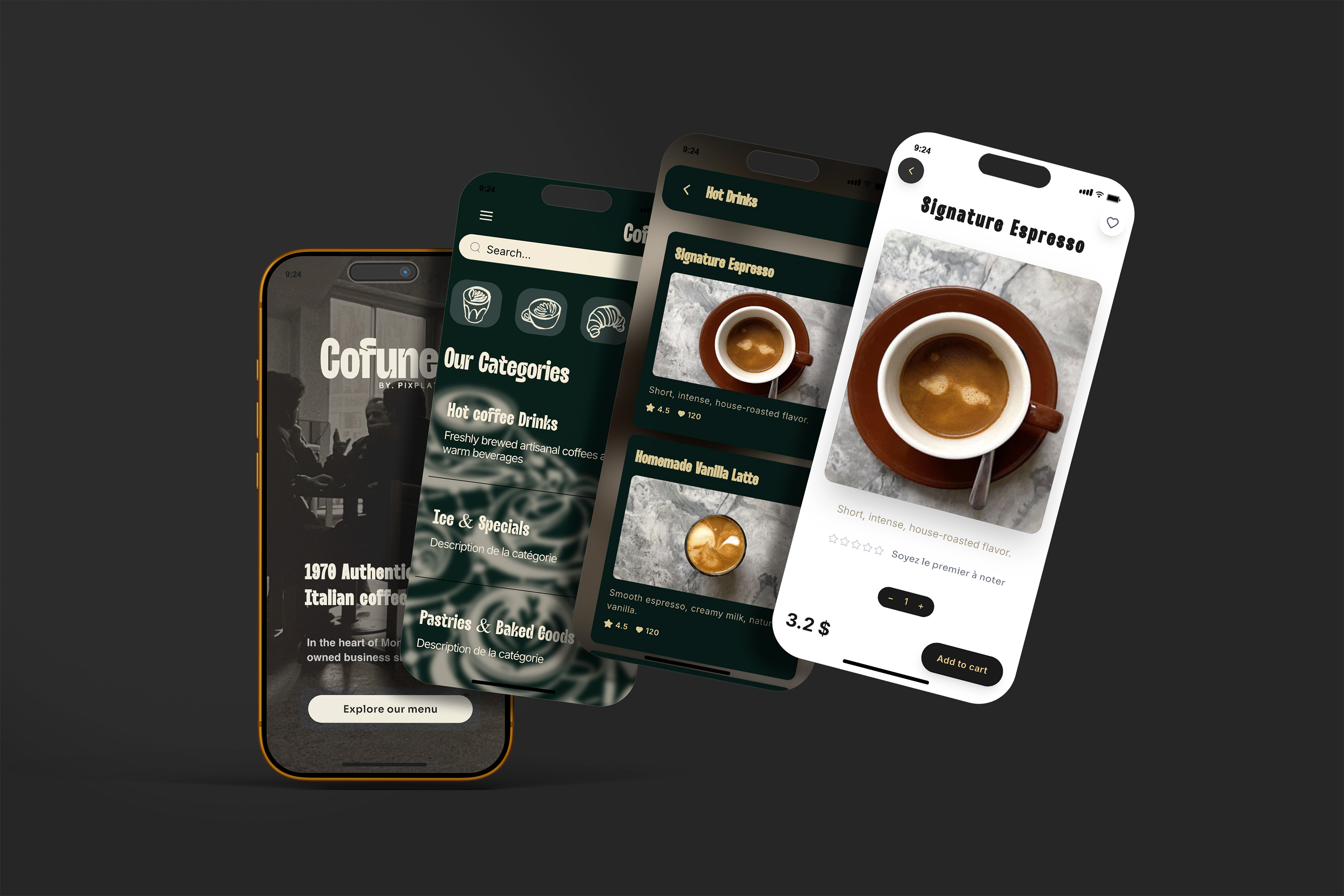
Before you can generate a QR code, you need a menu to point it to. On PixPlat, this happens inside the visual editor: you drag in your sections, add dishes with names, descriptions, prices, and photos, and choose a template that fits your brand. The editor shows you a live mobile preview as you build — so you're seeing exactly what your guests will see before anything goes live.
A few decisions to make during this step:
How many sections? Keep navigation simple — 4 to 6 clear categories outperform 12 subcategories on mobile
Photos or no photos? Use them wherever you have quality images. The National Restaurant Association notes that digital ordering platforms with visual descriptions can lead to orders up to 20% higher than those taken without imagery.
Allergen and dietary information? Add dietary badges (V, GF, VE) at the item level — guests will filter by these and it significantly reduces questions to staff
→ For the full guide to building your menu content, see How to create an online restaurant menu: step by step

Step 2 — Publish and generate your QR code
Once your menu is ready, publishing takes one click. PixPlat automatically generates your QR code at the same time. You'll see a preview immediately.
At this stage, you can also customise the QR code itself:
Add your restaurant logo to the centre of the code
Match the code's colors to your brand palette
Add a call-to-action frame: "Scan for the menu" or "View our menu here"
Choose the output size for print — the minimum recommended for table scanning is 4 × 4 cm (roughly 1.5 × 1.5 inches)
A well-designed QR code increases scan rates and reinforces your brand identity. Follow QR code printing best practices: ensure a minimum size of 2 × 2 cm for table-distance scanning, use high-contrast colours, and print on materials that resist spills and wear.
A branded QR code on your table tent is not a small detail. It signals professionalism before a guest has read a single menu item — and it builds trust in the scan itself. An unbranded black-and-white grid raises a subconscious question: "Is this legitimate?" A code with your logo answers that question immediately.
Step 3 — Test before you deploy
This step gets skipped more often than it should. Before printing a hundred table tents, test your QR code under actual restaurant conditions:
Scan from the distance and angle a seated guest would use (typically 30–50 cm, slight downward angle)
Test in the lighting conditions of your dining room at night — many restaurants look very different under ambient dining light than under office overhead lighting
Test on at least two devices: one iOS, one Android
Verify the menu loads fully and all sections work
Check that any allergen filters or dietary toggles function correctly
Time the load speed — if it's over 3 seconds, contact your platform's support
Test the code yourself before putting it in front of guests. Scan it from the distance and angle a seated guest would use. Try it under the actual lighting conditions of your dining room, not just under bright office lights. Adobe
Step 4 — Place your QR codes strategically
Where you put the QR code determines how many guests actually use it. Placement is not an afterthought.
The data on placement is clear: 60% of all QR code scans in restaurants come from table-mounted codes, because customers are already seated and ready to order. Everything else — window stickers, entrance signs, receipts — is supplementary traffic.
The most effective placement options, ranked:
Table tent (centre of table, upright) — highest scan rate, immediately visible when seated
Table sticker (edge of table or laminated card under glass) — good for minimalist aesthetics
Entrance window — captures guests browsing before entering or waiting outside
Takeaway packaging — extends the QR touchpoint beyond the table; useful for directing repeat customers back to your menu or loyalty programme
Receipts — useful for post-visit feedback or review generation
For each placement, print a short instruction line beneath the code. "Scan to view the menu" is enough — clear instructions such as 'Scan to view the menu' help first-time users understand what to do, especially in restaurants with a diverse customer base.
One common mistake: placing the code flat on the table surface. A guest's phone needs a clear, unobstructed view to scan reliably. A table tent or vertical card stand is always preferable to a flat sticker for this reason.
Step 5 — Brief your team
Your staff will receive questions about the QR code, especially in the first two weeks. The three most common:
"I can't get it to scan" — usually a dirty phone lens or insufficient lighting; have one laminated backup menu per section as a fallback
"Do I need an app?" — no, just the phone's camera
"Can I still have a paper menu?" — yes, and offering that option proactively to guests who appear hesitant removes any friction
Train your team not to make guests feel embarrassed for not knowing how to scan. A brief, helpful offer — "Here, let me show you" — goes further than pointing at the table tent.
How QR code menus increase revenue — the mechanics
The business case for QR code menus is often summarised as "save on printing." That's the floor, not the ceiling.
Restaurants using digital QR menus report a 15–25% increase in average order value through digital upselling, and a 20–30% improvement in service speed. These gains come from three structural advantages:
Guests browse differently on a screen than on paper. A physical menu is read front-to-back. A digital menu is explored non-linearly — guests scroll, filter, revisit. This dwell time consistently leads to discovering dishes they'd have skipped on a static page. High-margin items surfaced in a "Chef's picks" section or a visual feature at the top of the menu get ordered more than the same item buried in a list.
Upsell prompts work without being pushy. A server suggesting an add-on can feel transactional. A digital prompt — "Add a side of truffle fries?" — at the moment a guest adds their main course to the order is timely, relevant, and unobtrusive. Deloitte research shows that customers spend 20% more per order through QR code menu upselling, feeling more relaxed about customising their orders without staff interaction. Dev
Table turnover accelerates. When guests can browse immediately after sitting, order when ready, and pay from their phone without flagging a server, the pace of service at every step tightens. Square data shows that restaurants adopting QR code-based payments experience a 15% increase in table turnover. Over a full service, that compounds into meaningful additional covers.
Format | Recommended approach | Notes |
|---|---|---|
Fast casual | QR on every table + entrance; enable ordering from the code | Speed is the priority — remove every friction point |
Café / coffee shop | QR at counter and tables; display-only or order-enabled | Useful for showing daily specials without a chalkboard |
Full-service restaurant | QR as primary menu with printed backup available | Keep 3–5 laminated backups; offer proactively to hesitant guests |
Bar / cocktail lounge | QR on table tents; cocktail list prominently featured | Seasonal cocktail updates are the main win here |
Food truck | QR on the counter/window; no table placement needed | Highest impact for the lowest investment |
Fine dining | QR as supplement (allergen details, wine pairings) | Don't replace the physical card; add depth with it |
Multi-location group | One platform, separate menus per location | Centralised management is the main operational gain |
How to customise your QR code for your brand
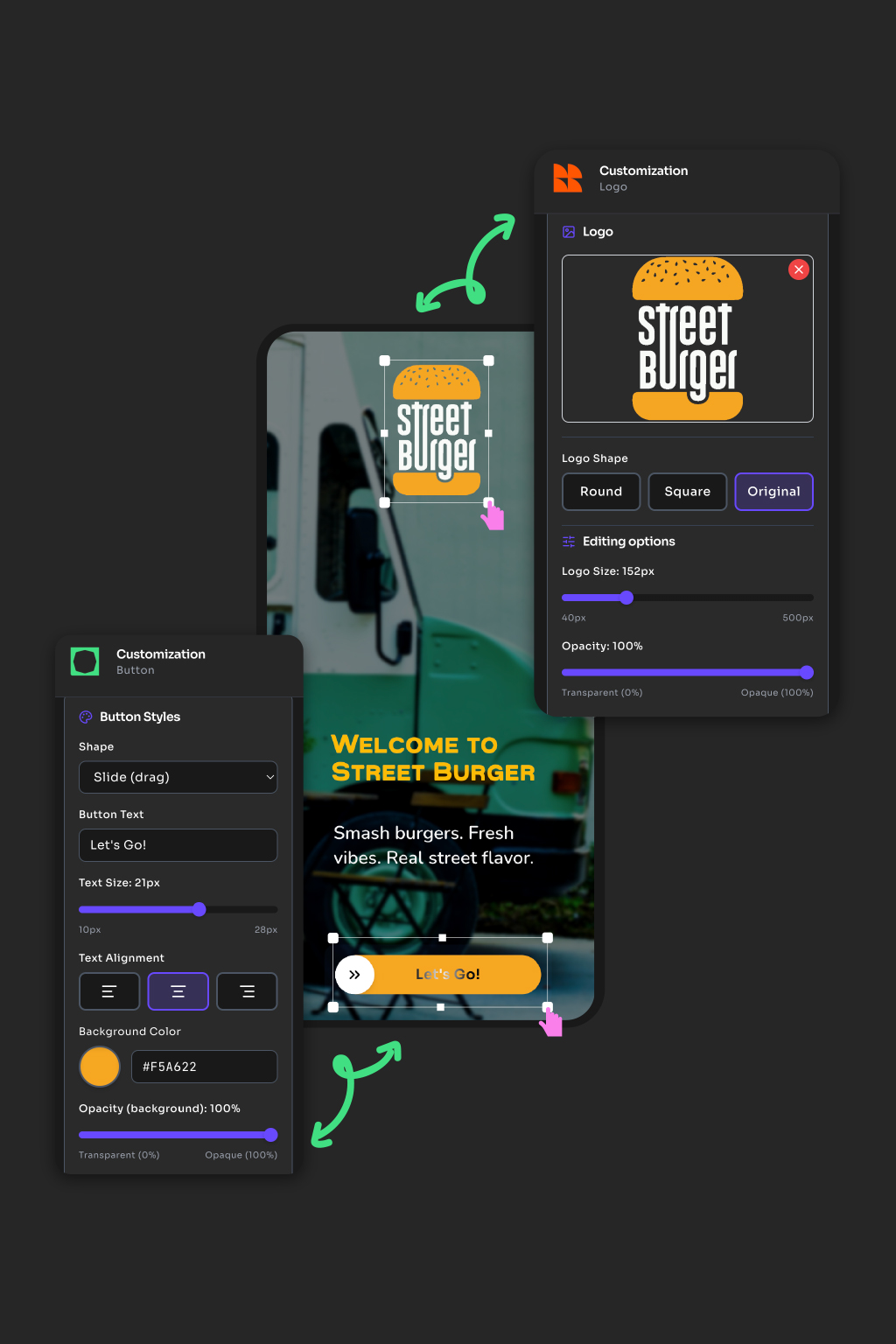
The QR code itself is a branding surface that most restaurants underuse. A generic black-and-white grid says nothing about your restaurant. A code with your logo and colors, framed with a clean call to action, is a small but visible signal that attention to detail extends to every part of the guest experience.
On PixPlat, the QR editor lets you:
Insert your logo into the centre of the code (the "quiet zone" is designed for this)
Choose foreground and background colors that match your brand palette
Add a frame with custom text — "Scan for the menu", "View today's specials", or your restaurant name
Export at print resolution for table tents, stickers, or signage
The one technical constraint: maintain sufficient contrast between the code modules and the background. Dark on light is the most reliable. Very light codes on coloured backgrounds scan less consistently, especially in dim restaurant lighting.
→ See the full guide to How to customise your QR code to match your restaurant brand
What to do after launch: reading your QR analytics
Going live is the beginning, not the end. A dynamic QR code generates scan data from the first guest who uses it. How you read that data determines whether the QR menu becomes a passive tool or an active one.
The key metrics to track in the first 30 days:
Total scans per day — establishes your baseline and shows peak periods
Scan rate by placement — if you've deployed codes in multiple locations (tables, entrance, takeaway bags), compare which generates the most traffic
Peak scan hours — aligns with your busiest service windows and confirms your QR is being used when you need it most
Device breakdown — iOS vs Android; useful if you notice loading issues on one platform
For restaurants using separate QR codes for different areas — indoor dining, patio, bar, takeout counter — you can compare engagement across zones and make informed decisions about layout, staffing, and marketing spend.
After 30 days, the most useful question is not "how many scans?" but "what changed?" Did average check size move? Did staff report fewer "what's on tonight?" questions? Did you catch an error you'd missed — a price that was wrong, a dish still showing as available at 9pm when it sold out at 7?
Those are the signals that tell you the QR menu is working as a management tool, not just a guest-facing convenience.
→ For a deeper dive on menu analytics, see Restaurant menu analytics: understanding your customers
The questions guests ask most
Does scanning a QR code require an app? |
|---|
No. All modern smartphones — iOS and Android — can scan QR codes natively with the camera app. No separate scanner app or download is required. If a guest's camera doesn't respond, it's usually because the lens is dirty or the distance is off; moving 5–10 cm closer typically solves it. |
Can I keep paper menus alongside the QR code? |
Yes — and for most full-service restaurants, this is the right approach, at least during the transition period. Many restaurants adopt QR codes alongside traditional service rather than as a full replacement. Offering physical menus on request and keeping staff available ensures that QR codes enhance, rather than replace, quality service. The goal is never to force technology on guests — it's to make the experience better for those who want it. |
If I update my menu, does the QR code change? |
No. With a dynamic QR code, the printed code is permanent. Every update you make in your dashboard is reflected immediately when the next guest scans — no reprinting, no replacing table tents. This is the core operational advantage over static codes. |
How do I know if my QR code is actually being used? |
Your platform's analytics dashboard shows every scan: when it happened, on what device, and from which placement if you've set up multiple codes. You'll know within 24 hours of going live how often your QR code is being used and by whom. |
Ready to build your QR code menu?
PixPlat handles everything described in this guide: the visual menu editor, the automatic QR code generation, the brand customisation tools, and the analytics dashboard. You can publish your first digital menu and generate your QR code in a single session.
→ Start for free — build your menu and get your QR code → Explore the complete guide to digital menus for restaurants