How to Generate a QR Code for Your Restaurant Menu (2026)
Step-by-step guide to generating a QR code for your restaurant menu — static vs dynamic, branding, print specs, error correction, and placement strategy.
How to Generate a QR Code for Your Restaurant Menu
Most restaurant owners generate their QR code in under five minutes and still get it wrong. Not the technical part — that's genuinely fast — but the decisions around it: choosing the wrong code type, exporting the wrong file format, printing it too small, skipping the branding step. Each of those choices quietly costs scan rate, and low scan rate means the whole investment stalls.
This guide gives you the complete picture: how to generate a QR code for your restaurant menu, the technical settings that matter, and how to make sure every guest who sits down actually uses it.
Before you generate: decide what the QR code points to
A QR code is only as good as the destination it leads to. Before opening any generator, decide what your code will link to.
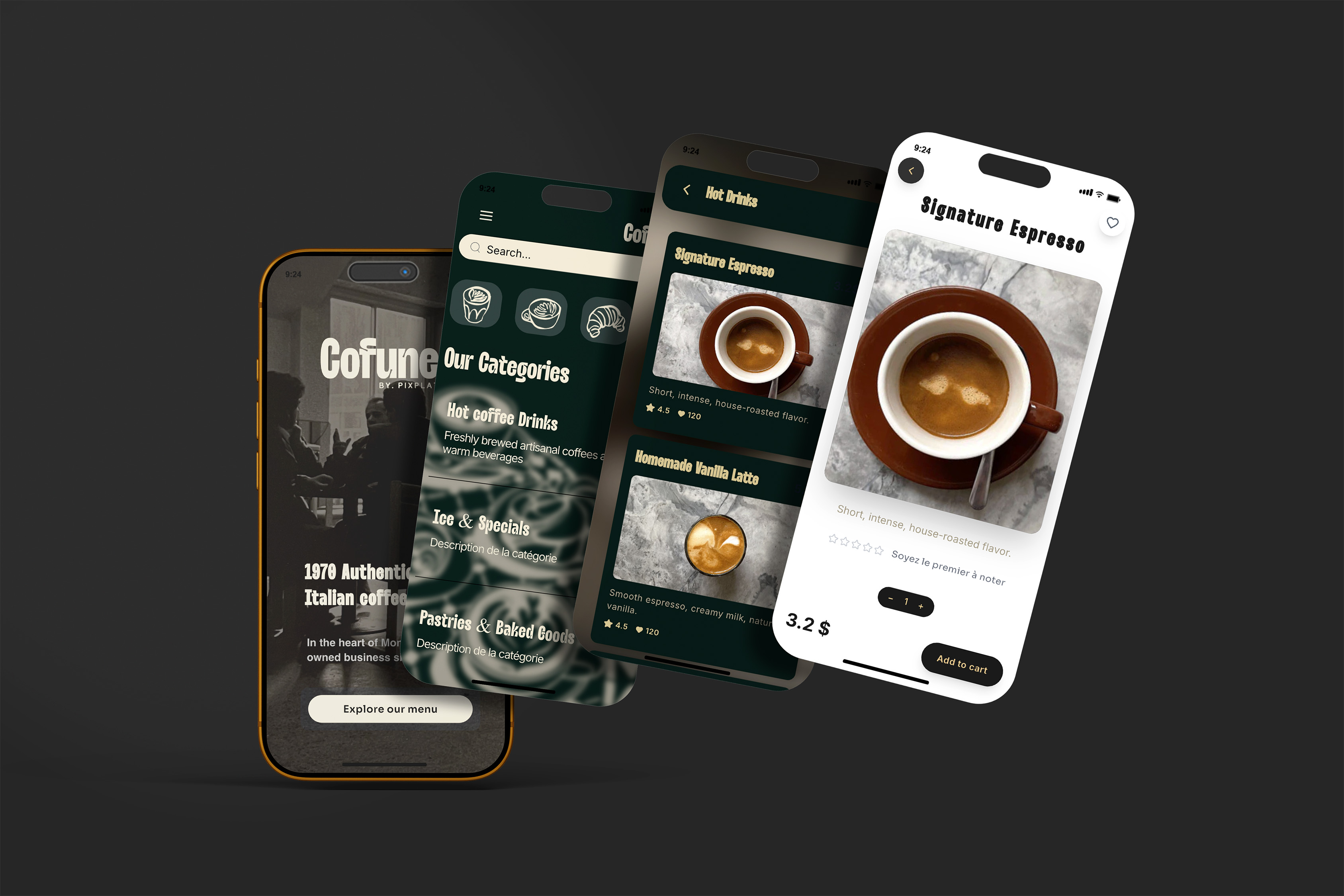
Option 1 — A mobile-optimised digital menu (recommended) A proper digital menu hosted on a platform like PixPlat. It loads fast, looks like your brand, updates in real time, and includes analytics. This is the format that delivers the full business case for QR menus: faster service, lower printing costs, data on guest behaviour.
Option 2 — A PDF Faster to set up if you already have a designed menu file. The downside: PDFs are not optimised for mobile screens. Guests need to pinch-and-zoom to read them, and you can't update them without uploading a new file and, if you're on a static code, reprinting the QR. Acceptable for a first step. Not a long-term strategy.
Option 3 — An ordering or payment system If your platform supports scan-to-order, the QR code links directly to the ordering flow rather than just the menu view. This is the highest-functionality option and the most complex to set up — it requires integration with your kitchen display or POS.
For most restaurants starting out, the right choice is a mobile-optimised digital menu. Build it first, then generate the QR code — not the other way around.
→ To build your digital menu before generating the QR code, see How to create an online restaurant menu: step by step
Step 1 — Choose between a static and a dynamic QR code
This is the single most important decision you'll make, and it's the one most guides rush past.
Static QR codes encode a fixed URL directly into the pattern. Once printed, the destination cannot be changed. If you update your menu or change hosting providers, every printed QR code becomes useless and you will need to reprint them all. Dynamic QR codes use a short redirect URL that you control. The QR pattern always points to the same short link, but you can change where that link redirects at any time. QRLynx
Here is the practical difference for a restaurant:
Static QR code | Dynamic QR code | |
|---|---|---|
Can you update the menu URL without reprinting? | No | Yes |
Scan analytics available? | None | Full (time, device, location) |
Works if your hosting changes? | No — reprint required | Yes — update the redirect |
Code complexity (affects scan reliability) | Higher (encodes full URL) | Lower (encodes only the short redirect) |
Cost | Free | Included in most digital menu platforms |
Best for | One-off events, fixed PDFs | Live restaurant menus |
The case for dynamic is decisive. Most restaurants use dynamic menu QR codes since they allow updating menus regularly without changing the QR codes — they're cost-efficient because you won't need to print different QR codes every time you edit your menu. Pixplat
If you build your menu on PixPlat, your QR code is dynamic by default. The platform generates it automatically when you publish, and the redirect is permanently tied to your menu — not to a third-party service that can disappear.
Step 3 — Set the right error correction level
This is a technical setting that most restaurant owners never think about, and it directly determines whether your QR code survives the real-world environment of a restaurant table.
QR codes use error correction to remain scannable even when part of the code is dirty, scratched, or obscured. There are four levels:
Level | Recovery capacity | When to use |
|---|---|---|
L (Low) | 7% damage tolerance | Digital screens only — never for print |
M (Medium) | 15% damage tolerance | Clean print environments, no logo |
Q (Quartile) | 25% damage tolerance | Laminated menus with moderate wear |
H (High) | 30% damage tolerance | Any code with a logo in the centre |
Restaurant table tents are subject to spills, grease, and condensation from drinks — they need high reliability. If a restaurant logo is added, Level H is required. Laminate or use waterproof materials to extend life, but high error correction is still essential. Gocreateqr
The rule is simple: if you're adding your logo to the QR code, always use Level H. If the code is a clean, logo-free black-and-white pattern, Level M is sufficient and produces a less dense, more easily scannable code.
A logo placed in the centre of a QR code typically covers 10 to 20% of the total module area. Level H (30% recovery) provides sufficient headroom above the coverage to guarantee a reliable read. Level M may work if the logo is very small, but offers no margin for additional damage like scratches or fading. QR-Verse
One practical note: on most consumer QR generators, the error correction level is hidden or set automatically. On PixPlat's QR editor, it adjusts automatically when you add a logo — you don't need to configure it manually.
Step 4 — Brand your QR code
An unbranded QR code is a missed opportunity and, for some guests, a trust barrier. A plain black-and-white grid looks anonymous. A code with your logo, your colours, and a clear call to action communicates intent and ownership before the first scan.
Table tents with "Scan for Menu" text increase scan rates by 35% compared to a code with no label. Server mentions of the QR code increase scan rate by 50%. Larger, more visible codes get 25% more scans — don't miniaturise to save space.
In PixPlat's QR editor, you can:
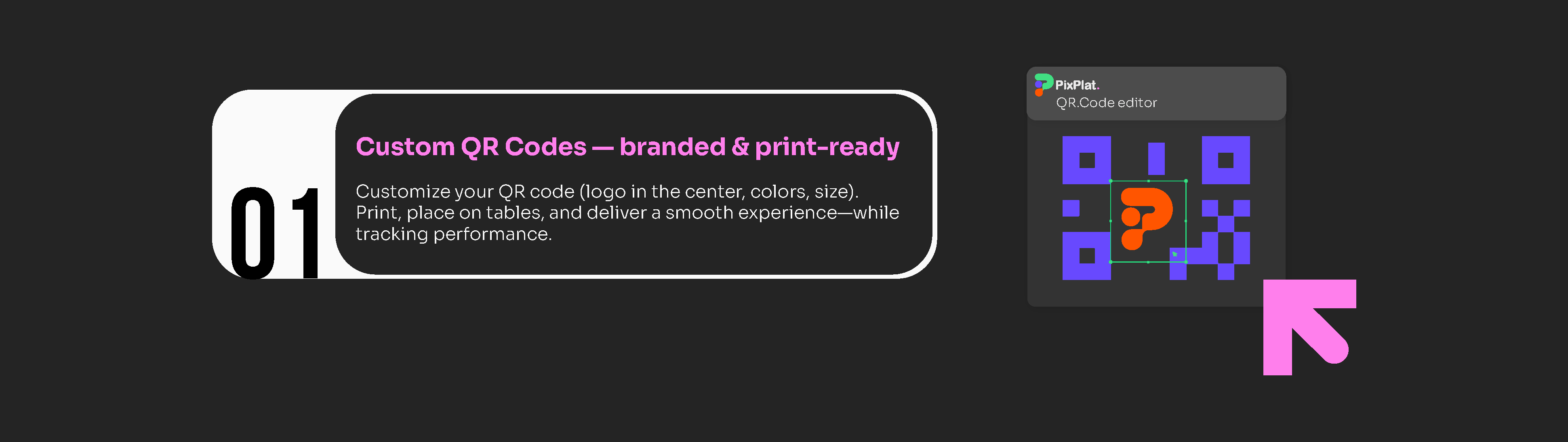
Add your logo to the centre of the code — set error correction to H automatically
Customise colours — change the module colour (the dark squares) and the background to match your brand palette
Add a frame with text — "Scan for our menu", "View today's specials", or your restaurant name
Adjust the style of the corner squares and modules — rounded or square, depending on your brand aesthetic
What to avoid when branding your QR code:
Using low-contrast colors is a common mistake. A dark green QR code on a dark brown background might match your brand aesthetic, but it won't scan reliably. Stick to high-contrast combinations and save the brand colors for the menu page itself.
Two absolute rules: dark modules on a light background (never reverse), and never remove the quiet zone — the white border around the code. The quiet zone is a functional requirement that tells the scanner where the code begins and ends. Skipping this is the most common reason QR codes fail, and no amount of error correction can fix it.
Step 5 — Download in the right file format
The format you download determines print quality. This is where many restaurants create problems they only discover after printing 50 table tents.
Always download as SVG for anything you're printing. SVG is infinitely scalable — it looks sharp on a small table tent card or a large window sticker at any size, with no pixelation. If your printer needs PNG, request the highest resolution available (300 DPI minimum). Never use a low-res PNG for print. OpenQr
A practical guide by use case:
Use case | Recommended format | Why |
|---|---|---|
Table tent, sticker, card | SVG or PNG at 300 DPI+ | Print-quality at any size |
Window decal, poster | SVG | Scales without quality loss |
Website, email, social media | PNG (high resolution) | Screen-optimised |
JPEG | Never use for QR codes | Lossy compression creates artifacts that interfere with scanning |
Set error correction to M or H when exporting — this helps scanning on slightly damaged or curved surfaces. Export as SVG (preferred for print), or high-res PNG (at least 1,000 × 1,000 px). Adobe
PixPlat exports your QR code in both SVG and high-resolution PNG directly from the dashboard, with the correct settings pre-applied.
Step 6 — Test before printing anything
This step costs two minutes and prevents a week of guest frustration. Never print your QR codes at scale before testing every scenario.
Run through this checklist on the actual device and in the actual environment:
Test | Pass condition |
|---|---|
Scan on iOS (iPhone camera app) | Menu opens in browser within 2–3 seconds |
Scan on Android (native camera) | Menu opens in browser within 2–3 seconds |
Scan at table distance (30–50 cm, slight downward angle) | Code reads reliably on first attempt |
Scan in your dining room lighting at service time | Readable without holding phone steady for 5+ seconds |
Load speed on mobile data (not Wi-Fi) | Menu fully loads in under 3 seconds |
Check all menu sections and items | No missing content, no broken images |
Test on older phone model if available | Confirms compatibility beyond flagship devices |
A QR code that works perfectly on your iPhone 16 might behave differently on an older Android device. Test on at least two different devices before mass printing.
If the code fails on any of these, diagnose before printing. Common causes: code too small, contrast too low, wrong file format used, quiet zone removed, or error correction set too low for the logo size.
Step 7 — Print at the right size and place it strategically
Print size is the most underestimated variable in QR code deployment. Codes that are too small generate failed scan attempts, which trains guests to stop trying.
The minimum QR code size for print is 2 × 2 cm (0.8 inches) for close scanning. The general rule is: scanning distance ÷ 10 = minimum QR code size. For example, 2 metres viewing distance requires a 20 cm minimum code size.
For restaurant use specifically:
Placement | Recommended minimum size | Why |
|---|---|---|
Table tent (seated, 30–50 cm away) | 4 × 4 cm (1.5 × 1.5 in) | Standard table distance |
Counter display (standing, 60–80 cm away) | 6 × 6 cm (2.5 × 2.5 in) | Slightly further scanning distance |
Entrance window (walking past, 1–2 m) | 10 × 10 cm (4 × 4 in) | Longer distance requires larger code |
Takeaway packaging (hand-held) | 2.5 × 2.5 cm (1 × 1 in) | Close-range scanning |
Suggested chart type: visual diagram showing the 10:1 distance-to-size ratio with restaurant placement examples
On the material itself: matte finish is best for scannability as it produces no glare or reflections. Glossy or laminated surfaces can cause camera glare — test at various angles before committing to a glossy finish. Gocreateqr For table tents, laminating over a matte-printed QR code gives you durability without the glare problem.
On placement: 60% of all scans come from table-mounted QR codes — customers are already seated and ready to order. Table QR codes offer immediate access from the moment guests sit down. Everything else — entrance windows, receipts, takeaway packaging — adds incremental scan volume, but the table tent is where your investment earns its return.
The five most common QR generation mistakes — and how to avoid them
Using a static code for a live menu. Any time your menu URL changes, every printed static code becomes dead. Always use dynamic.
Downloading PNG at screen resolution (72 DPI). A 72 DPI code looks fine on screen and blurry when printed. Always request 300 DPI or export SVG.
Adding a logo without changing error correction to Level H. The logo covers part of the data. Without sufficient error correction, the code fails intermittently — reliable at first, unreliable once the table tent has been handled a few dozen times.
Printing the code too small to compensate for space on the card. A 1 × 1 inch table tent QR code had a 12% scan rate. The same code at 2.5 × 2.5 inches had a 58% scan rate — same design, just bigger. Size directly drives adoption.
Placing the code flat on the table surface. A phone camera needs a clear line of sight. A flat sticker on a wooden table requires guests to hover their phone directly above it, which is awkward. A vertical table tent removes that friction entirely.
What happens after your QR code is live
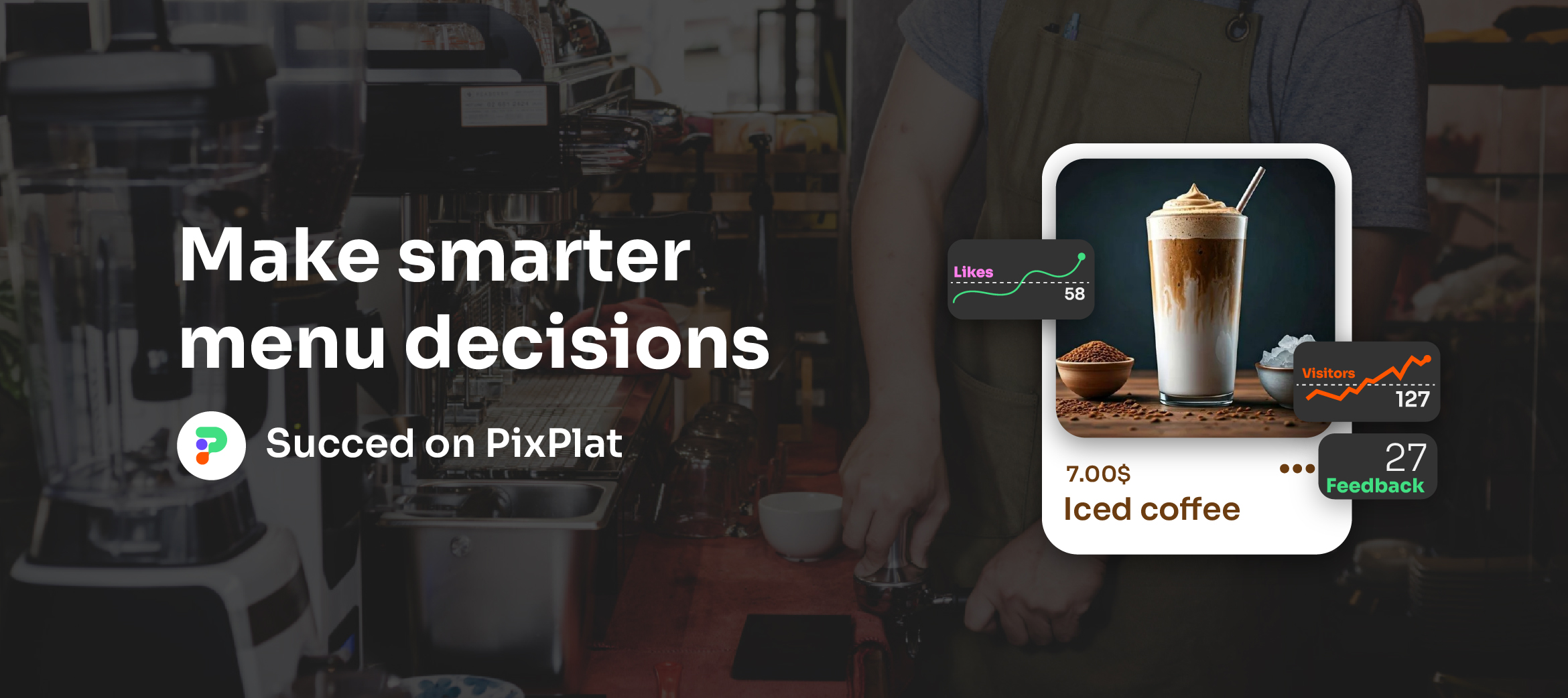
Your QR code generates scan data from the first guest who uses it. In PixPlat's dashboard, you can see total scans by day, peak scan times, and device breakdown. 45% of daily restaurant QR scans happen during dinner service (5pm–9pm), with 35% during the lunch rush. Schedule any menu updates or promotional changes before these windows to ensure your best content is live during peak engagement. OpenQr
Track two things in the first month: total daily scans (your baseline), and any spikes or drops that correspond to placement changes or staff mentions. If your scan rate is lower than you'd expect, size and placement are the first variables to adjust — not the menu content.
→ For what to do once guests are scanning your menu, see QR code menu for restaurants: how it works and how to set it up
→ For the full guide to digital menus, see The complete guide to digital menus for restaurants

Frequently asked questions
Do I need a paid tool to generate a QR code for my restaurant menu? |
No, basic QR generation is free with most tools. The value of a paid platform like PixPlat is not the QR generation itself — it's the dynamic redirect (so you can update your menu without reprinting), the scan analytics, and the branded QR customisation. If you're linking to a PDF that will never change, a free static generator is sufficient. If you're running a live menu, dynamic codes with analytics are worth the platform cost, which is typically $10–15 per month. |
Can I update my menu after printing the QR code? |
With a dynamic QR code, yes — and this is exactly why dynamic codes exist. The printed code points to a short redirect URL. Change the destination of that redirect and every scan from that moment on lands on your updated menu. The printed code never changes. With a static code, no — any menu URL change requires reprinting. |
My QR code sometimes fails to scan. What's wrong? |
The most common causes, in order of frequency: code printed too small (under 2 cm for table distance), insufficient contrast between modules and background, quiet zone removed or too narrow, wrong error correction level for a logo-branded code, or a glossy surface creating glare under your restaurant lighting. Test each of these before blaming the generator. |
Should every table have its own unique QR code? |
For a display-only menu, one QR code for all tables is fine. For scan-to-order or payment functionality, individual table codes allow the system to route orders to the correct table automatically. Most restaurants start with a single code per venue and move to per-table codes when they enable ordering. |